Minimize IoT Downtime
Setting Up Inactivity Alerts in ThingsBoard PE

Lady Elliot Island Lighthouse, Lady Elliot Island, Queensland, Australia
© Copyright 2023 - Great Barrier Reef Marine Park Authority
Unplanned downtime is the enemy of any IoT deployment, and finding out a device has been disconnected for hours is a headache no one needs. Fortunately, configuring automated notifications in ThingsBoard PE ensures you are always the first to know when connectivity drops.
In this guide, we will walk you step-by-step through setting up instant email alerts for offline devices, helping you minimise data loss and keep your operations running smoothly.
Prerequisites
Administrator account at our ThingsBoard portal data.moreton.io
Setup the Timeout period
Pro Tip: Choosing the Right Inactivity Timeout Every device transmits at a specific frequency, and the timeout period dictates how much time must pass without a signal before the system flags it as offline. To set this effectively, consider your specific use case:
To prevent alert fatigue on unreliable networks: If your device has an inconsistent signal and telemetry is often delayed, allow a buffer for multiple transmission attempts.
For example, if a device transmits hourly but frequently struggles with poor signal, consider a generous timeout period of 24 hours.For mission-critical data: If immediate awareness is essential, set a tight timeout period—typically 2 to 3 times your standard transmission frequency.
For instance, if your device sends data every 5 minutes, a 10 or 15-minute timeout ensures you are alerted almost instantly when it drops.Important: Always base your timeout period on your device's transmission rate, not its logging rate.
For example, if your device records data locally every 15 minutes but only sends that batch of data to the server every 60 minutes, your baseline for the timeout calculation must be 60 minutes.
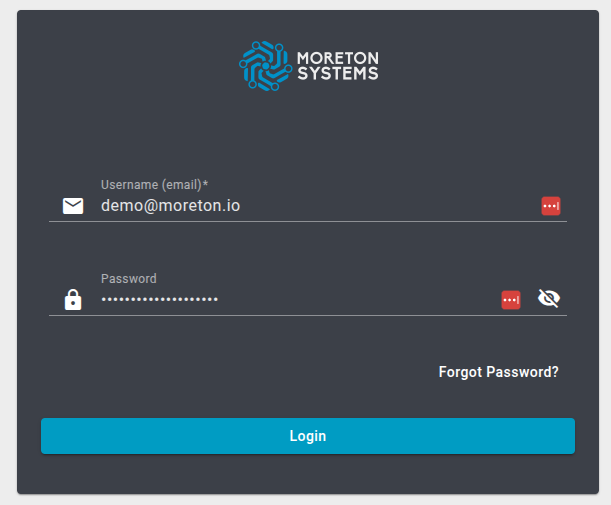
Step 1: Log in to data.moreton.io
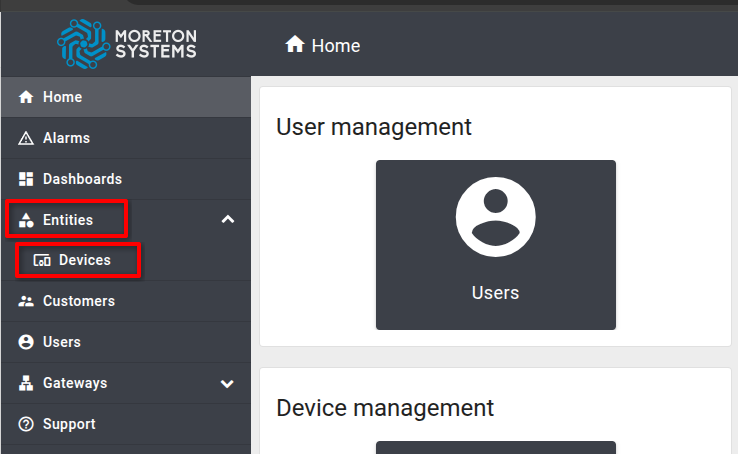
Step 2: On the left menu, click on Entities > Devices
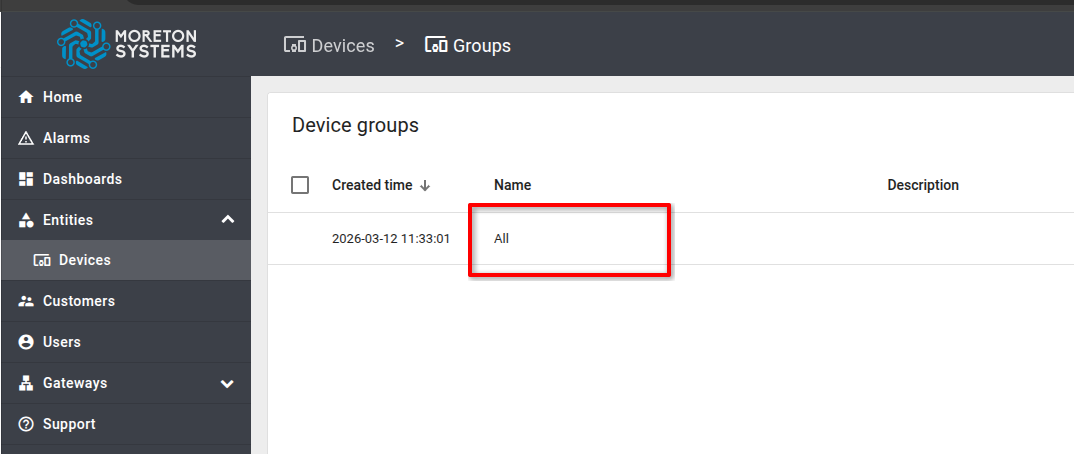
Step 3: Under Device groups, click on All
Step 4: Click on the Settings button on the right
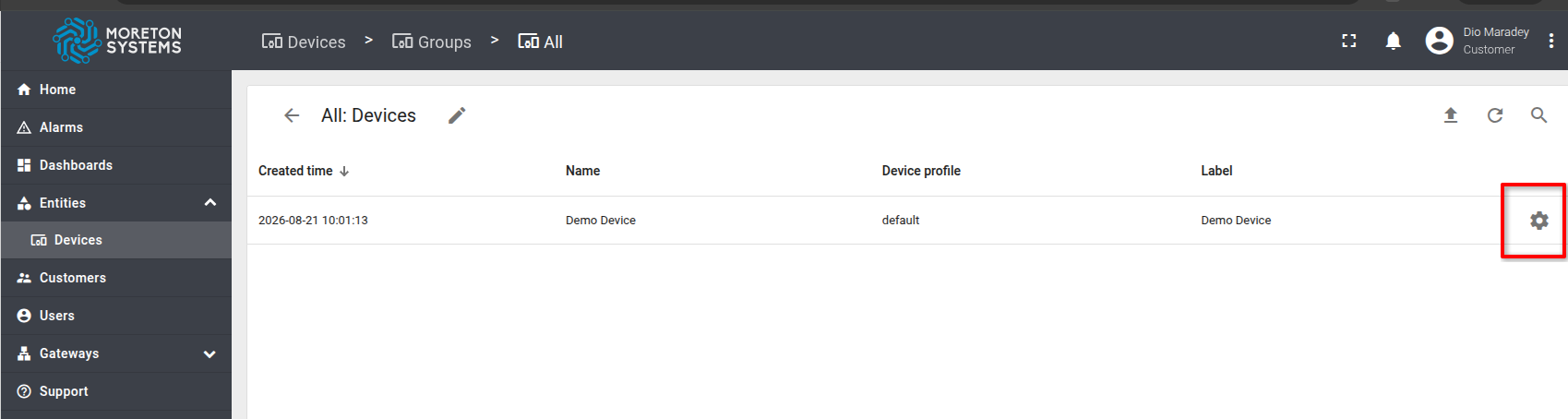
Step 5: Enter the Inactivity Timeout value in minutes, click Save and close the browser tab.
Note: The minimum value allowed is 10 minutes
Enable or Disable Notifications
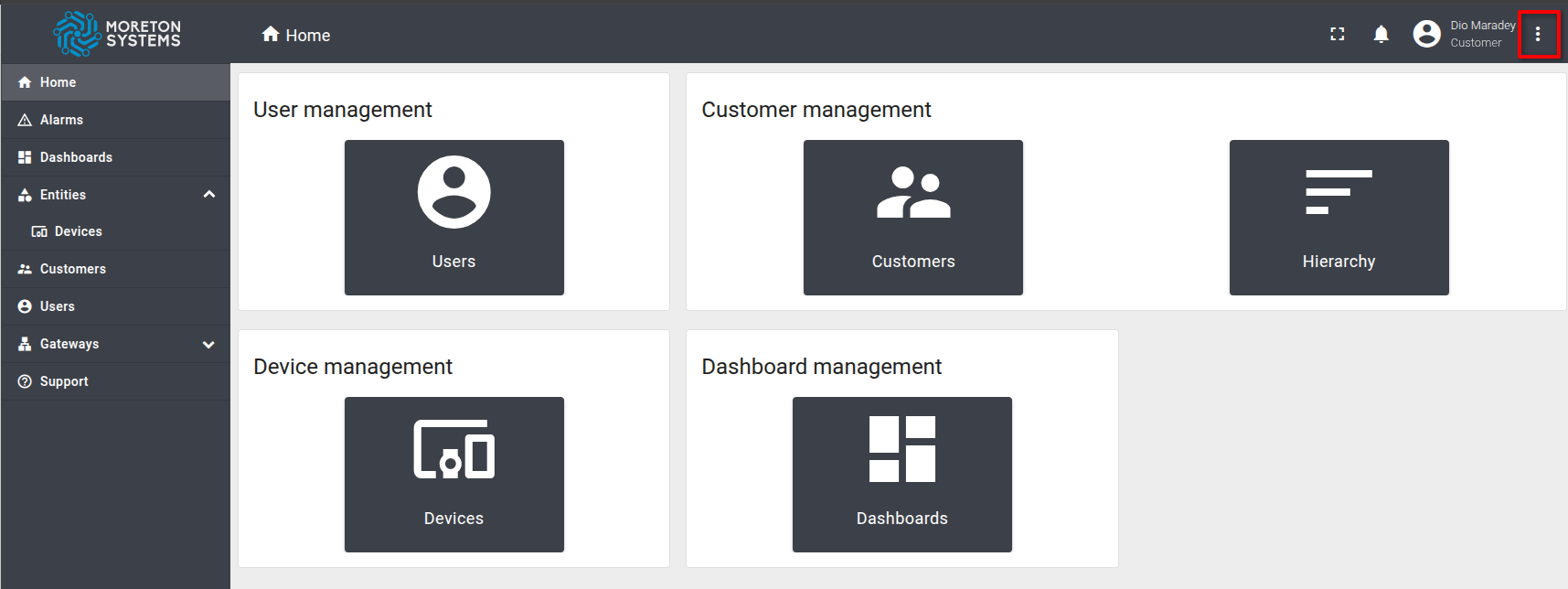
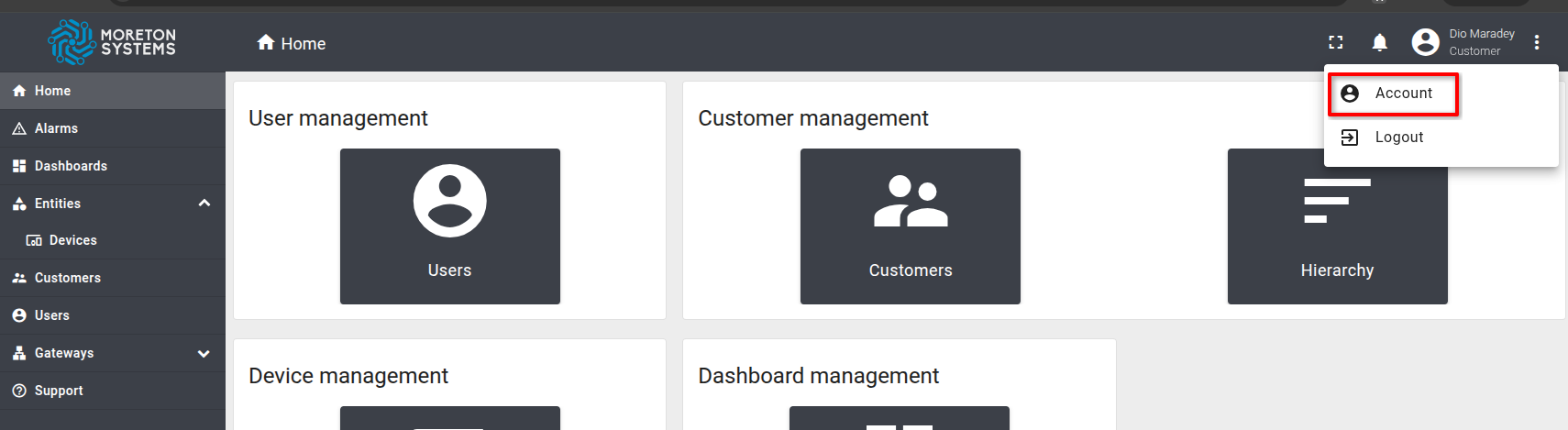
Step 1: On the top right corner, click on the menu drop down icon and then on Account
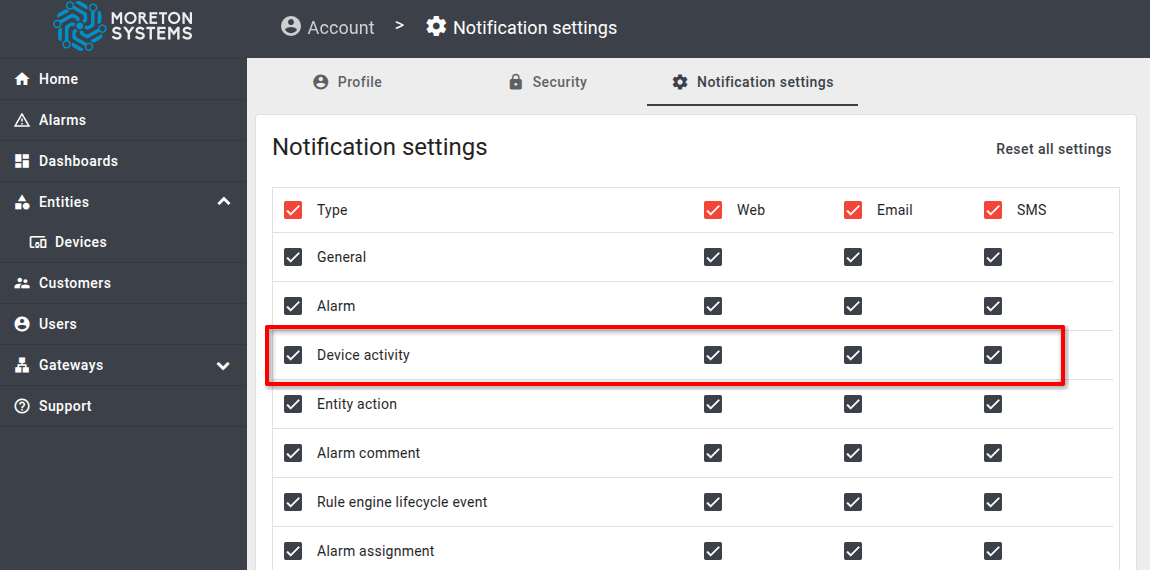
Step 2: Click on the Notification settings tab
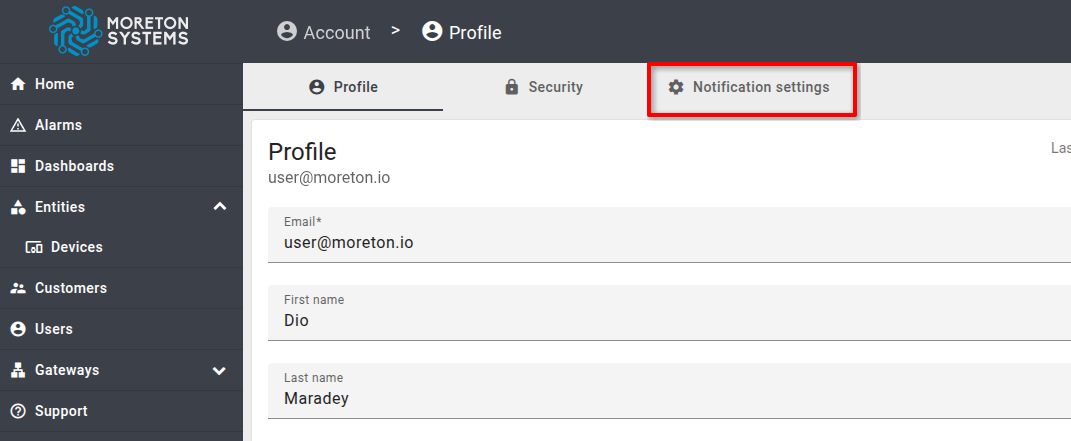
Step 3: Check or not Device activity to enable or disable the notification then click Save